Chords Tutor and chord construction
Chords Tutor compares triads, CAGED, shells, four-note voicings and quartal chords. Choose root, quality and instrument; catalogue buttons toggle extensions and alterations on and off.
Four-note voicings: choosing an arrangement
Four-note voicings offers Any, Close position, Compact, Drop 2 and Drop 3. Any combines the four arrangements and keeps four slots per family, including unavailable positions. The same fingering may appear in more than one family: it is retained so the order remains recognisable.
Close position keeps all four voices within an octave. Compact preserves the catalogue’s voice order and can exceed an octave with extensions. When the form extends the 1–3–7 shell, its description reads “Compact · extended shell”; a complete chord such as C–E–G–B remains “Compact”. Shell-derived extensions and alterations are also available.
The played voicing explicitly names an omitted fifth: Cm9(no5) contains C–E♭–B♭–D. It can also be a Drop 2: lowering C, the second voice from the top in E♭–B♭–C–D, by an octave produces that arrangement. “no5” describes the notes present; “Drop 2” describes their arrangement. In inversions, the note after the slash identifies the actual bass.
Cards, filters and playback
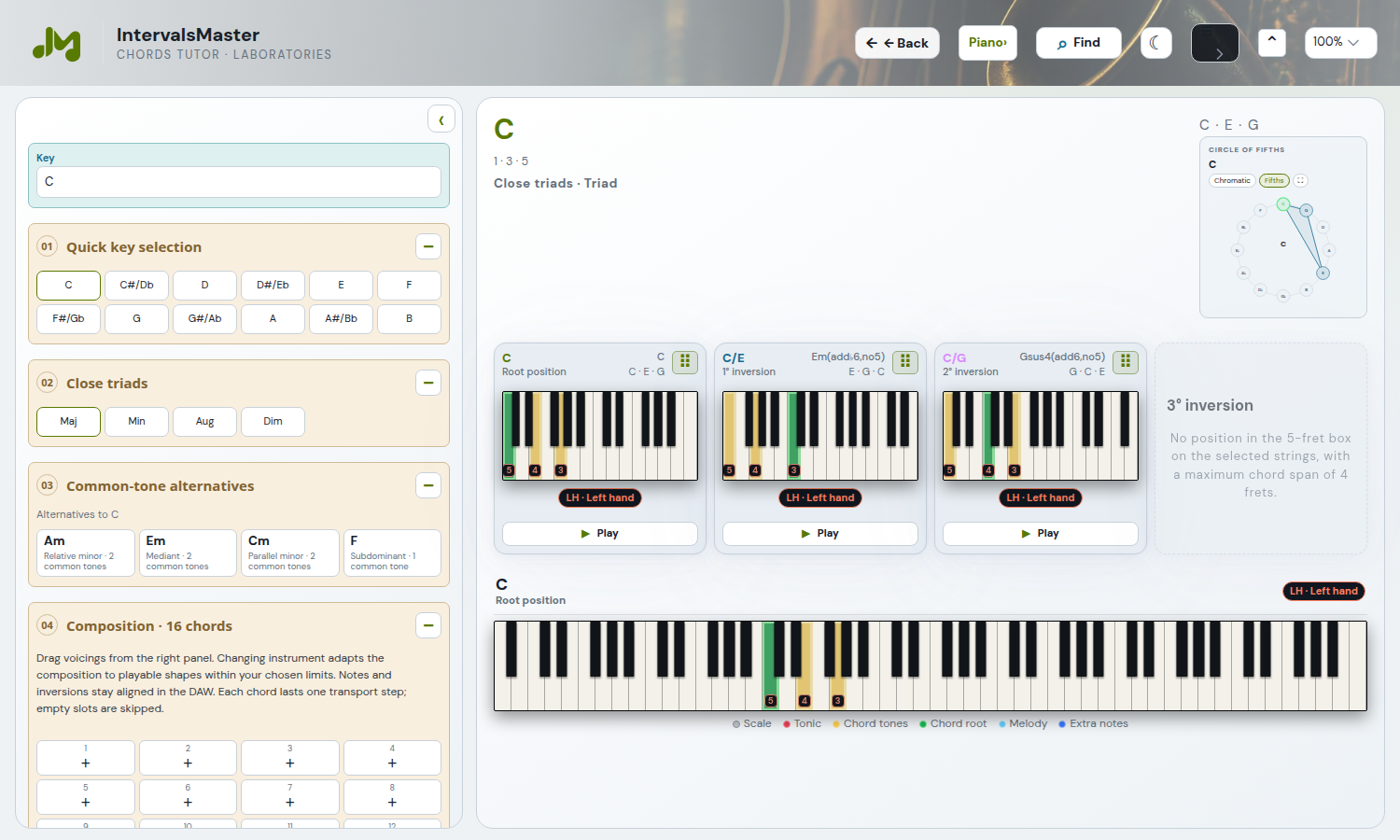
Compact cards show the chord name and position on the left, with the bass-rooted equivalent and actual notes on the right. Play auditions a single form and updates the large fretboard or piano. The circle of fifths highlights chord tones. Unavailable cards keep their place with a readable explanation.
In Chord and instrument settings, Playable only = Yes hides unavailable cards; No shows them. This preference persists across reloads and compatible modules. Bass string, open chords, box width and chord span constrain available positions: even CAGED may display fewer than five shapes. At least one chord tone must lie inside the box; other chord tones may extend beyond it within the configured chord span.
Training plays inversions in sequence. Tempo, pulse and groove remain in the page panel with shared controls; the header popup manages the instrument. Restoring settings never starts playback. Substitution details explain common tones, differences and possible uses in context.
Shared MIDI keyboard
For compatible keyboard instruments, open Study settings from the instrument button in the header. The MIDI connection subsection groups the device and MIDI controls; it appears only when available for the selected instrument.
- Connect a USB keyboard, such as the Akai LPK25, press Connect MIDI and allow access in the browser.
- Select the device and set Computer sound. Playing lights up visible keys; with sound enabled, you hear the selected instrument with velocity and polyphony.
- Use Stop MIDI notes to stop sounding notes or Disconnect MIDI to end the connection.
After the first connection, device, sound and MIDI connection preferences persist across pages and reloads. Returning to piano or reconnecting USB restores the keyboard automatically. Only Disconnect MIDI disables automatic reconnection. Switching to another instrument stops sounding notes. MIDI input does not record a DAW track.
Interval resolutions
Open Laboratories → Chords and voicing → Interval Resolutions. Explore a second resolving to an octave and two combined pairs, then develop the cell over 1, 2 or 8 bars. Choose key, instrument and voices; How to study appears above the keyboard. Use the shared playback controls and create a DAW block.
Chords Tutor: chord-type practice plans
Chords Tutor also uses Guided practice plan. Choose root and instrument, then generate a Balanced, Triads or Seventh chords plan. Triads contains four different chord types; the other plans offer five. The guide selects the chord type and plays inversions using Chords Tutor’s existing cards, mapper and player. Duration, rests, slowdown, saving and reviews work as in Scales and Arpeggios. Plans and drafts stay separate between the modules. Registration and an active licence are required. Practice also offers sequential inversion playback alongside each card’s Play button, using shared tempo, pulse and groove controls. The practice plan remains separate from voicing composition, which provides DAW transfer.
Voicing composition and DAW transfer
In Composition · 16 chords, drag voicings from their cards into the sequence slots. Each chord lasts one transport step and empty slots are skipped. You can select, remove and compact slots. Changing instrument adapts the composition to playable shapes within the configured limits. Listen to the sequence and use Create DAW block in its dedicated panel: notes and inversions follow the chosen voicings. The composition and its settings are retained without starting audio on restoration.