Modal Interchange and harmony laboratories
Modal Interchange compares harmonisations around the same tonal centre. Choose a scale family, a starting mode and a target mode, listen to the two rows and build your own progression.
- Set the tonic and harmonic family.
- Choose the starting and target modes.
- Compare A and B: identify degrees whose quality or colour changes.
- Build a custom progression from the material you want to keep.
- Set instrument, voicing and chord-change rate; listen to the complete result.
- Send the supported material to the DAW, checking whether you are transferring chords or a line of notes.
The custom progression has sixteen slots. Empty slots do not automatically create bars of silence. What matters to the arrangement is the duration of the material actually exported. The transfer may include chord symbols for the Chords view.
Composing with it
Prepare a stable A version and a B version using a borrowed colour. Keep them as separate blocks, or duplicate A and edit only the copy in the source. You can alternate them without losing the original.
Emotional Progressions, where available to an administrator, generates harmony around an expressive character. Check voicing, register and continuity before transferring; the expressive label is a starting point for listening.
Selecting A, B and C
In Modal Interchange, select sequence A, B or C: the persistent choice controls both Play and Create Block in DAW. Bass part appears for a compatible bass instrument. Instrument, voicing and voice leading are configured in the shared header popup.
Overwrite block applies key, instrument, chord type, voicing and In position / In sequence voice leading. Changing key also transposes sequence C; the block uses the same mapped positions as playback.
Chord Progressions and Functional Harmony
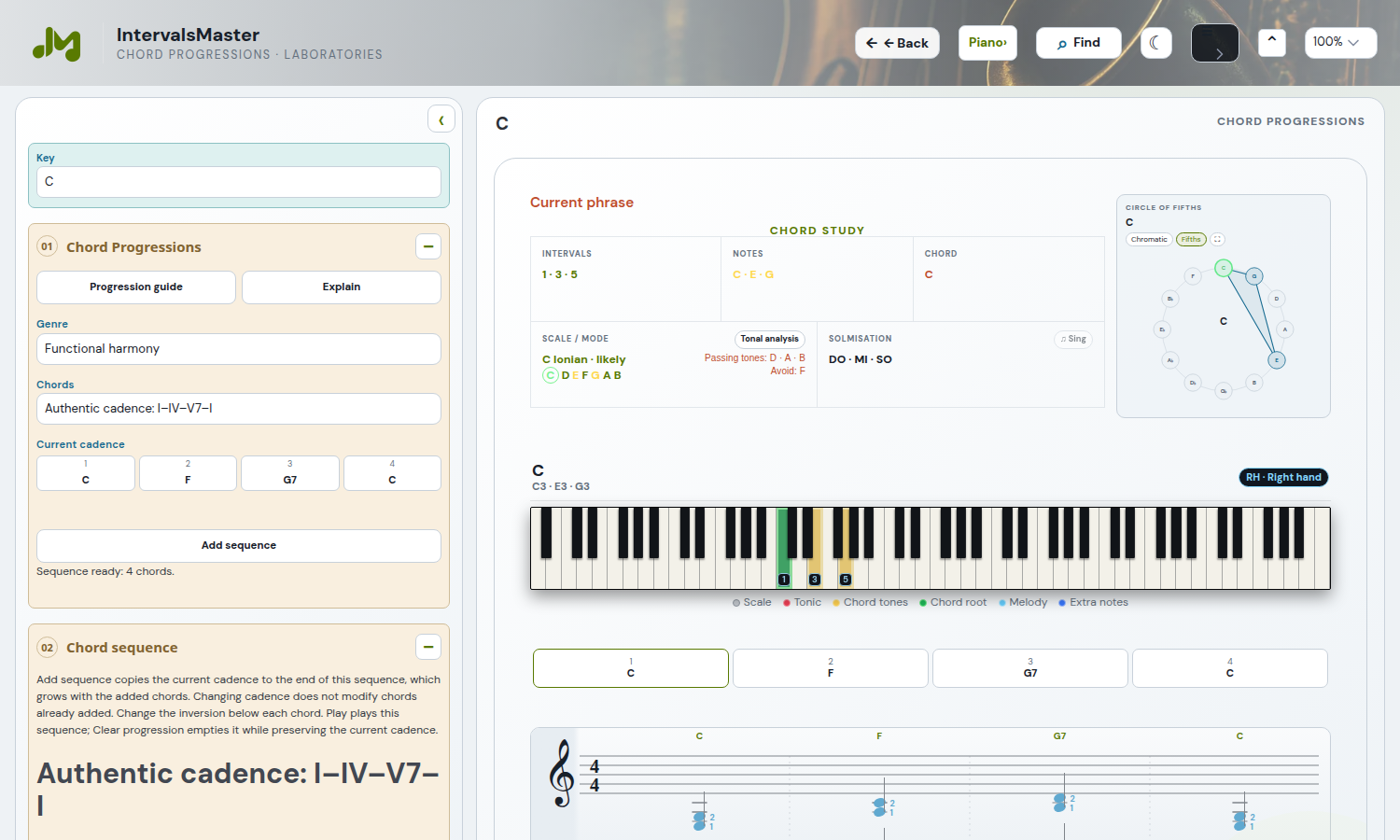
Open Laboratories → Chord Progressions. Choose a genre and cadence: Current cadence shows the chords in the selected model. Add sequence appends a copy to the custom Chord sequence, which grows or shrinks with its chords rather than using a fixed 16-cell grid. In the sequence you can edit chords and inversions, including C/E, or remove the selected chord. Changing cadence does not rewrite previously added copies. Play performs the custom sequence.
Press Add sequence to append chords to the progression, then Play. Clear progression clears only the composed progression; the selected cadence remains available for preview and for adding more sequences. Changing cadence only changes the chords to add; the progression retains the copies already added. The right panel follows the selected chord with intervals, notes, music circle, instrument and notation. Explain opens the cadence description. Written bass notes remain consistent in playback and DAW transfer. Drafts and choices are remembered without starting audio on restoration.
Scale / Mode proposes a likely reference for the whole sequence. Tonal analysis opens up to five alternatives and identifies chords with notes outside the reference. Scoring considers tones, dominant–tonic resolutions and opening and closing chords, with an initial preference for major and minor readings. These are not certain probabilities; you can select an alternative and the choice persists for that sequence. Candidates include the seven diatonic modes and harmonic and melodic minor.
Two lines beside the Scale / Mode reference describe the selected chord. Passing tones lists non-chord scale tones without the friction of a semitone above a chord tone. Avoid lists those that create this friction when sustained with chord tones. Both lists exclude chord tones themselves and update when another chord is selected. Avoid does not mean forbidden: these notes can also be used as passing tones or suspensions with a resolution. The key tonic can be an avoid tone over another chord, for example G above F♯ in a D major chord. A tone outside the reference is not automatically an avoid note or a wrong note.