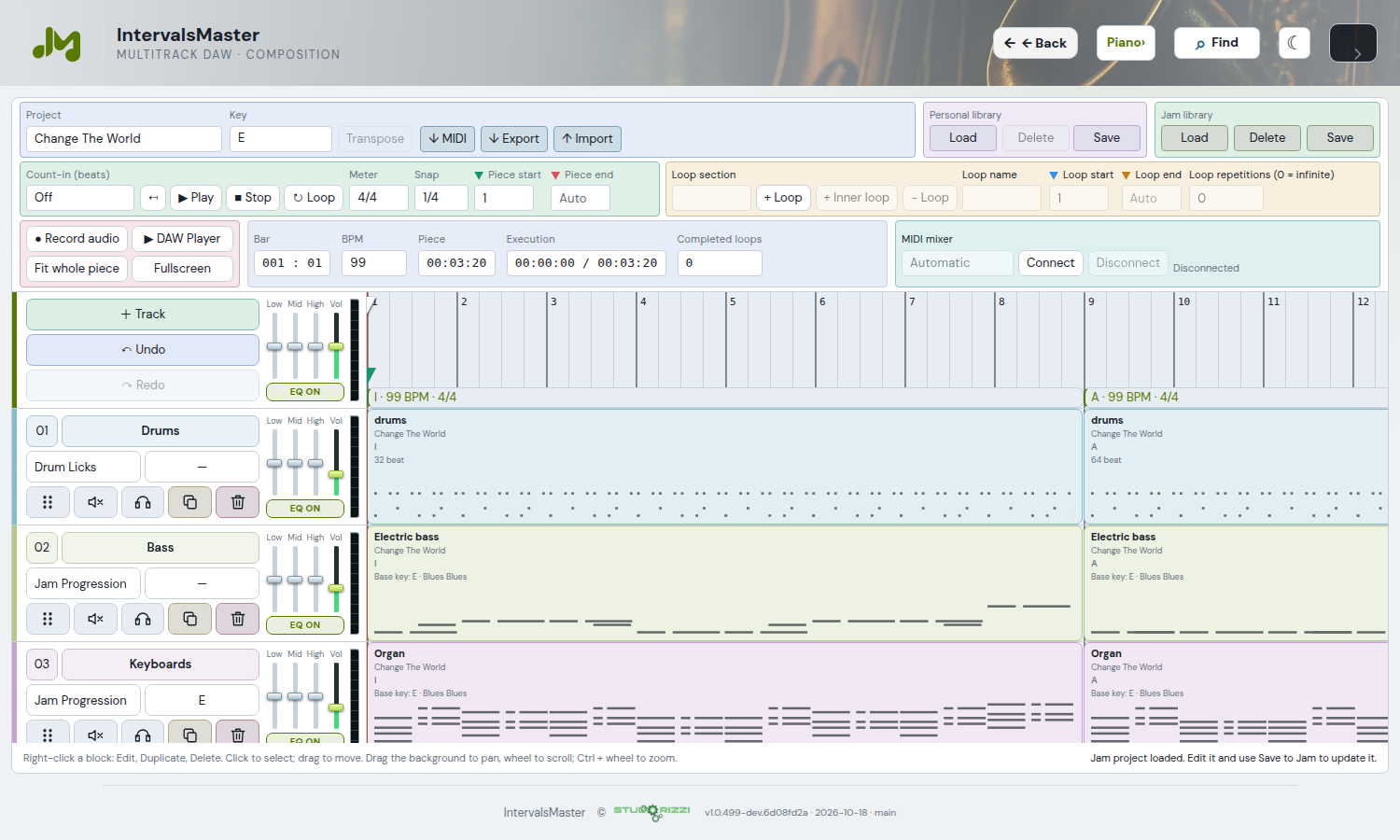
Audio, volume and track monitoring
Sounds are prepared on the server and shared by integrated modules and the DAW. FluidSynth handles SoundFont banks; Salamander uses its SFZ bank with sfizz.
The piano uses YDP Grand Piano, sampled from a Yamaha Disklavier Pro. Jazz guitar has a darker tone; other melodic instruments use FluidR3 GM. Drum Licks and the DAW share eight kits: five AVL kits, Salamander, TR-808 and Brushes. The selected kit travels with the block into the DAW.
One shared playback engine
Modules, Composition Assistant and DAW play the same samples through the same audio engine. With the same instrument, notes, velocity and mix settings, the timbre is the same. Recordings and imported audio retain their own playback.
Mix controls
- Vol: changes track level in real time without stopping playback.
- M: mutes the track.
- S: isolates one or more tracks.
- Mute and Solo also affect the parts exported to MIDI.
Changing an instrument or editing structure may stop playback; press Play again. Mouse panning moves the view and is not a stereo balance control.
First playback
Allow audio preparation to finish and press Play after interacting with the page. If silent, check audio output, browser tab, volume, Mute and Solo. A SoundFont unavailable message indicates a server problem, not a project setting to change.
YDP Grand Piano: FreePats / Roberto, Zenph Studios samples for OLPC, CC BY 3.0.
Volume and VU meters
The volume wheel adjusts the level in 2% steps, up to 120%. Track VU meters follow the signal and help you balance the mix.
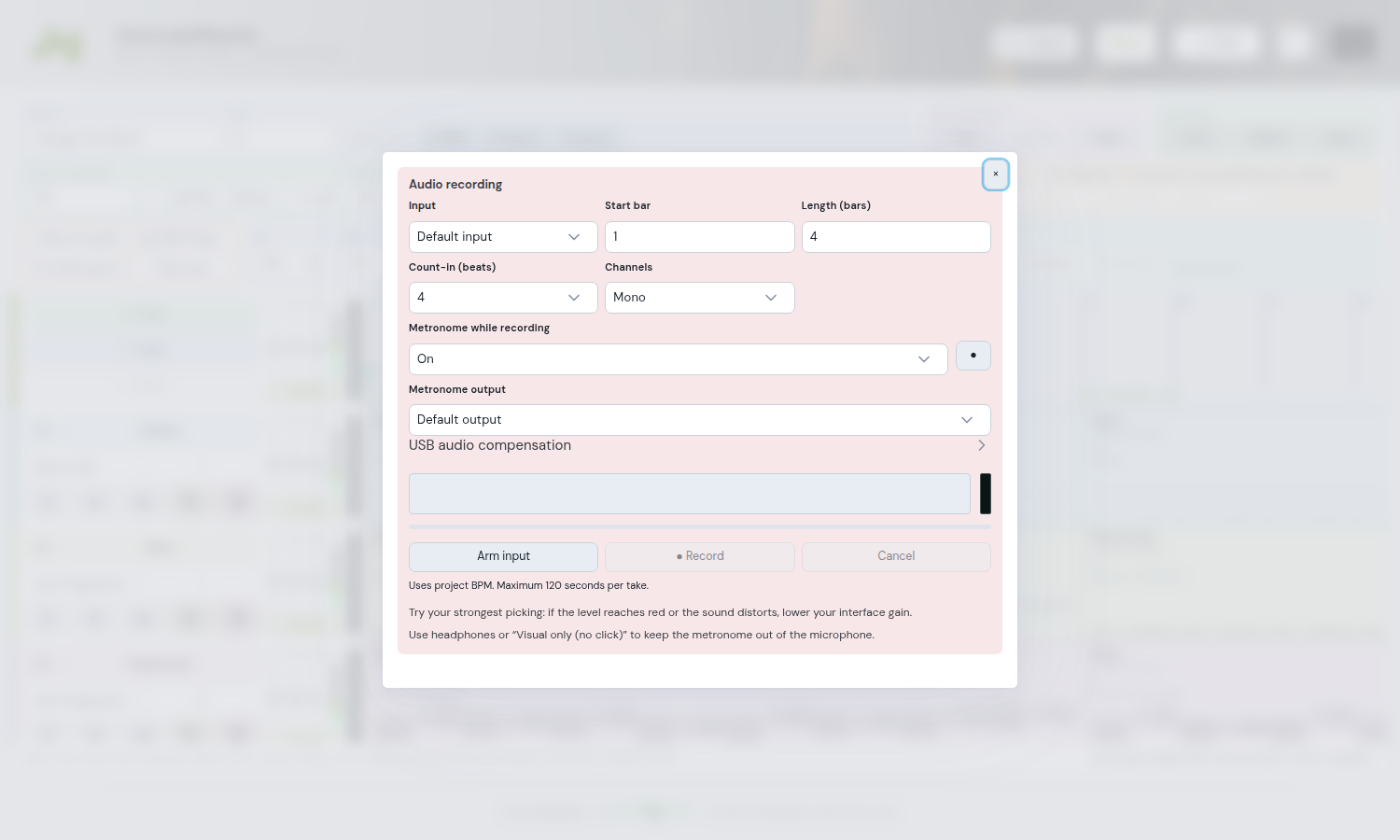
Recording an audio track
- Set project BPM and meter, then press Record audio.
- In the popup choose input, start bar, length in bars, a 4- or 8-beat count-in, mono/stereo and metronome.
- Press Arm input and allow microphone access in the browser. Check the VU meter.
- Press Record: after the count-in, play along with the audible project tracks. The popup shows progress, waveform and input level.
- Recording stops at the selected duration, the popup closes and the take appears in a new track. Save the project.
Cancel discards the current take. Recording start and end align to the grid; played notes are not automatically corrected. The count-in is excluded. Maximum 120 seconds per take. If saving fails, download the WAV from the popup.
Projects and .imdaw files retain audio; MIDI contains MIDI parts only. Audio follows BPM changes while preserving pitch within supported limits.
MIDI mixer and tone controls
Each track has Low, Mid and High controls from −12 to +12 dB and a Vol fader. Adjust EQ, volume, Mute and Solo during playback; these settings are saved with the project and affect every block on the track.
Select the mixer in the bottom-right panel and click Connect; grant browser MIDI permission when prompted. AKAI MIDI MIX follows track order, eight tracks per bank: the three knobs control Low/Mid/High, the channel fader controls Vol, Mute silences the track and Rec Arm activates Solo. Mute and Rec Arm LEDs follow the DAW state. Bank Left/Right changes banks.
Disconnect suspends DAW changes while continuing to read mixer movements as long as the page remains open. Connect applies the received positions to the active bank. SEND ALL immediately applies all assigned knobs and faders. On first connection, after a reload or a USB disconnect, press SEND ALL to read controls that have not moved yet; the panel shows a reminder. The master fader is unassigned; Mute and Solo retain their DAW state.