Shared controls and musical displays
IntervalsMaster is a multipurpose environment for studying, practising, experimenting, trying ideas and composing. Train your ear, explore a concept on your instrument, compare musical approaches or create a complete backing track. Choose one path or connect the modules to the DAW to develop your material.
Right panel · display. Shows the selected material: title and analysis, instrument keyboard or fretboard, chords, musical circle and staff, where available. Highlights follow playback and note-by-note navigation. Use these views to compare the position, pitch, rhythm and harmonic role of the same phrase. On narrow screens the panels may stack vertically and the controls can be collapsed.
Study settings
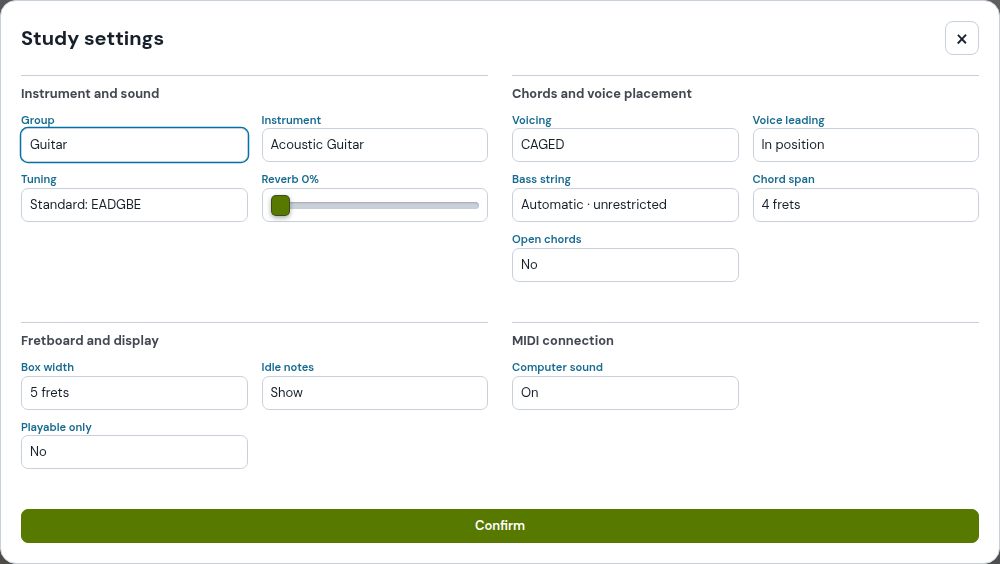
The shared popup groups Instrument and sound, Chords and voicing, Keyboard and display, and MIDI. Confirm applies changes. Tempo and pulse remain in the page panel. Compact instrument views share persistent note-order buttons and TAB for compatible string instruments.
In the popup, set the instrument, tuning, reverb, voicing and position limits where available. Press Confirm to apply and save; closing without confirming discards changes. Adjust tempo and pulse in the page panel. Compatible preferences restore without starting audio or timers. The study panel retains the tonic.
In Listen and Training, Metronome sits above Training. Numbers beside the command follow beats on the audio clock; the first beat of the bar is distinguished. Play starts the phrase and Metronome controls the click: they are separate commands. With the metronome already running, licks and studies using the shared player start on the next bar downbeat; the written phrase rhythm and duration remain unchanged. Restoring settings does not start the click.
| Control / term | Practical use |
|---|---|
| Tonic, scale and mode | Define the tonal centre and available material. Check the tonic before combining parts from different modules. |
| Instrument | Affects register, sound and visualisation. Available choices depend on the module. |
| Voicing, inversion, shape | Determine the distribution of chord tones. The same chord symbol can produce different note arrangements. |
| Position and starting string | Guide fingerings on string instruments where supported. |
| Tempo and pulse | Groups BPM, meter and relevant rhythm settings. Not every module offers every option. |
| Play, Stop | Start, repeat or stop playback. Module repetition settings are separate from DAW loop settings. |
| DAW | Create Block in DAW adds the current material; Overwrite block updates the block from which you entered the module. |
The fretboard shows string positions and intervals; the keyboard shows piano note distribution; staff notation helps you read pitch and rhythm; the music circle illustrates tonal relationships where available. Consult the local legend: a note’s colour may describe its musical role.
Shared preferences can carry across compatible modules. Still check instrument, tonic, register and BPM before generating: different features do not necessarily use the same parameters.
Digital Audio Workstation: always at the bottom
In modules that generate material for composition, the Digital Audio Workstation section appears at the bottom of the panel. Create DAW block transfers the selected material; listening controls remain separate. Chords Tutor can transfer its voicing composition. Scales and Arpeggios instead keeps its dedicated practice workflow.
Return, overwrite and cancel commands appear in that same DAW section. Creation uses the current instrument and chords, including the bass part when bass is selected.
Shared Listen and Practice
Play and Stop fill the first row. Start, Back and Forward navigate the material. The Repetition selector controls looping, without a second Loop button. Drum Licks and Modal Interchange use these same controls. Control-panel selections are remembered.
Listen and Practice replaces the previous panel across all laboratories and instrumental studies. Open Practice to hear the model, record your performance and compare it. Repetitions and recording settings are saved; reopening the panel does not start playback or recording. Drum assessment measures attacks and rhythm without identifying individual drums.
PDF sheets: progression and chord summary
Press Study PDF in the listening panel to download an offline sheet. In compatible instrument panels, enabling Show TAB prints TAB instead of the fretboard, including chords. Staff notation and TAB reflow into four-bar systems while retaining notes, durations, bends and slides. Songs show the title and chord chart in four-bar rows. Sections retain the names and bar ranges available in the song, without inventing an A/B form. The Complete sequence table is omitted when a chord chart is present.
The chord summary collects small diagrams without repeating the same symbol. For guitar it shows fretboard positions and intervals relative to the root; for keyboards it uses the instrument view. Diagrams come from the shared mapper and current settings. The song summary shows one position per chord symbol; it does not list every alternative voicing encountered throughout the progression.
Instrument views, note order and TAB
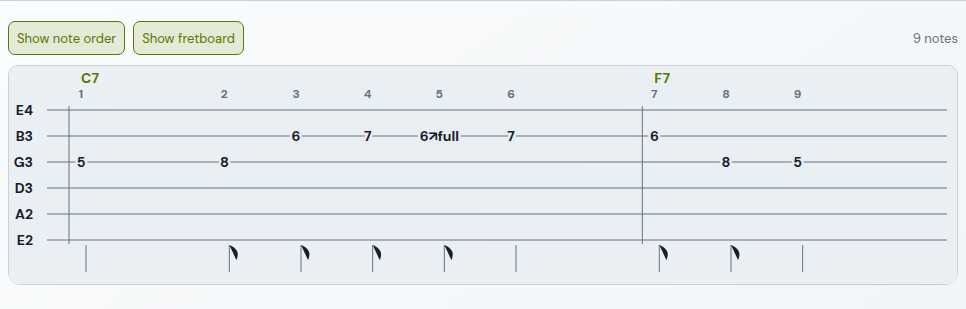
Shared instrument panels use a compact structure with essential information and commands. Show note order is an on/off button: fretboard numbers replace visible intervals and small reference points locate each position; the tonic stays red. Repeated notes and bend indications remain attached to each occurrence in the sequence.
Show TAB replaces the fretboard in the same space with tablature for guitar, bass, ukulele and bowed strings, using the mapped positions and configured tuning. Chord symbols appear above the bars; harmonized parts also show simultaneous chord notes. Bends and slides retain the phrase’s indications. TAB is unavailable for keyboards and winds; step order uses the appropriate instrument view. While TAB is visible, the button becomes Show fretboard to return to the instrument view. TAB fills the panel width and includes the entire staff sequence, with rests and durations. On bowed and fretless instruments, numbers indicate semitones above the open string, rather than finger numbers.
Both buttons retain your choice across reloads and compatible functions, without starting playback. The study PDF follows the selected view: active TAB replaces the fretboard, including chords. Staff notation and TAB reflow into four-bar systems where the material allows; the final system retains the remaining bars. Musical accidentals in text use an embedded font.